See render notes on the job page
See what a render changed from what you wrote, on the job page: fonts that fell back, clips held past their file, and clips that crossfaded over an overlap.
A render can finish complete and still not be exactly what you wrote. A font the render could not supply falls back to another, a clip that runs past its file holds its last frame, and two clips that overlap on one track crossfade. The job response has carried those notes in the render step for a while, under fontFallbacks, clipOverruns and clipOverlaps. The dashboard did not show them.
It does now. Open a job, and each note sits under the step that produced it, in the Steps section, in the words the runner wrote. Nothing to turn on, and jobs that rendered exactly as written look the same as before.
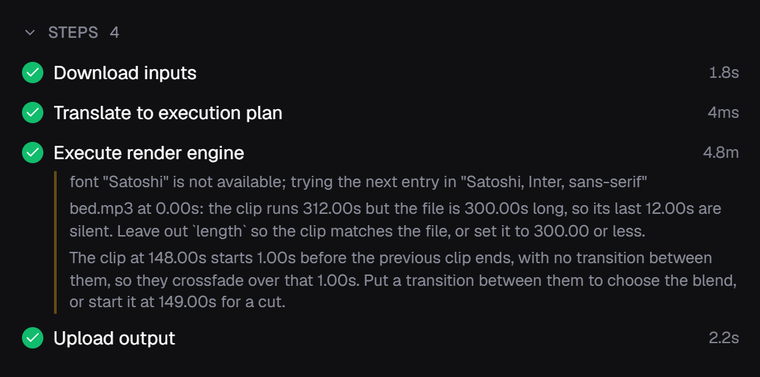
The same lists are in GET /jobs/:id under each step’s meta, for code that wants to check them. See the compose docs for what each note means and how to change the timeline so it does not appear.