> ## Documentation Index
> Fetch the complete documentation index at: https://rendobar.com/docs/llms.txt
> Use this file to discover all available pages before exploring further.
> ## Agent Instructions
> Keep the API key in an env var (RENDOBAR_API_KEY), never in chat or committed code.
> Job types change, so fetch the live catalog from GET https://api.rendobar.com/jobs/types rather than relying on memory.
> The full integration prompt for coding agents is at https://rendobar.com/prompts/integrate.md.
# Connect a Supabase Storage bucket
> Connect a Supabase Storage bucket to Rendobar by signing in with Supabase or with S3 access keys, so jobs can read files from it and write outputs back.
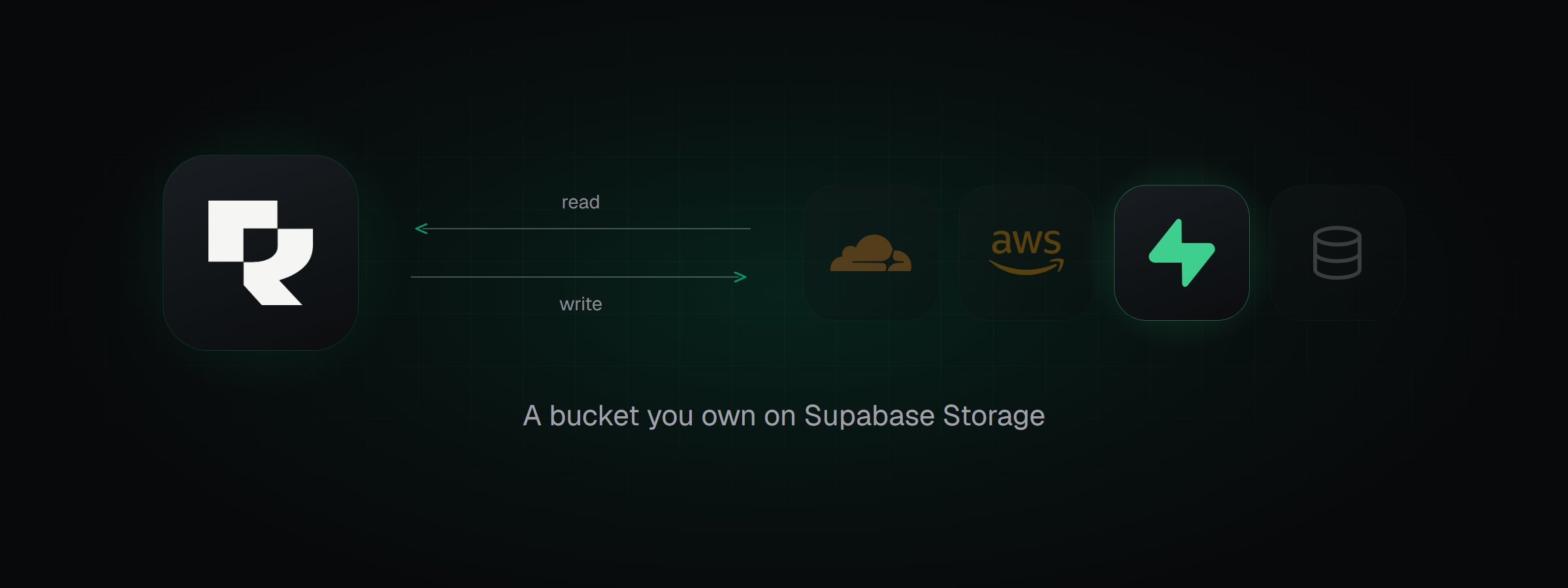
Connect a Supabase Storage bucket so jobs can read files from it and write outputs back to it. For how connections work across providers, see [storage connections](/docs/storage).
 ## Prerequisites
You need a Supabase project.
Supabase offers two ways to connect. Choose one with **Access** in the connect dialog:
| Access | Use when | You enter |
| ----------- | ------------------------------------------------------------------ | --------------------------------------------------------------- |
| **Sign in** | You can sign in to the Supabase organization that owns the project | Nothing. You pick the project and bucket after signing in |
| **S3 keys** | You want a credential that reaches Storage only | Endpoint, region, bucket name, access key ID, secret access key |
Both reach every bucket in the project, not only the one you connect. See [what Rendobar stores](#what-rendobar-stores).
**Sign in** needs the project's legacy `anon` and `service_role` API keys to be active, because Supabase Storage's S3 endpoint accepts only those keys. If they are turned off, turn them on under **Project Settings** > **API Keys**, or use S3 keys.
This page uses **Sign in**. To use S3 keys instead, see [Connect with S3 access keys](#connect-with-s3-access-keys).
## 1. Sign in with Supabase
1. In [**Storage**](https://app.rendobar.com/storage), select **Connect Storage**, then **Supabase Storage**.
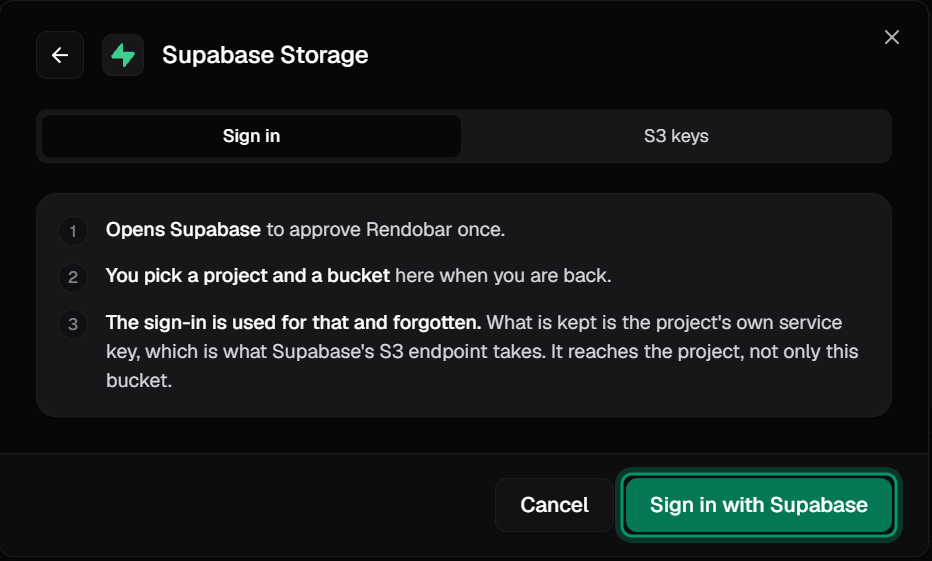
2. Under **Access**, select **Sign in**, then select **Sign in with Supabase**.
## Prerequisites
You need a Supabase project.
Supabase offers two ways to connect. Choose one with **Access** in the connect dialog:
| Access | Use when | You enter |
| ----------- | ------------------------------------------------------------------ | --------------------------------------------------------------- |
| **Sign in** | You can sign in to the Supabase organization that owns the project | Nothing. You pick the project and bucket after signing in |
| **S3 keys** | You want a credential that reaches Storage only | Endpoint, region, bucket name, access key ID, secret access key |
Both reach every bucket in the project, not only the one you connect. See [what Rendobar stores](#what-rendobar-stores).
**Sign in** needs the project's legacy `anon` and `service_role` API keys to be active, because Supabase Storage's S3 endpoint accepts only those keys. If they are turned off, turn them on under **Project Settings** > **API Keys**, or use S3 keys.
This page uses **Sign in**. To use S3 keys instead, see [Connect with S3 access keys](#connect-with-s3-access-keys).
## 1. Sign in with Supabase
1. In [**Storage**](https://app.rendobar.com/storage), select **Connect Storage**, then **Supabase Storage**.
2. Under **Access**, select **Sign in**, then select **Sign in with Supabase**.
 3. On the Supabase authorization page, choose the **Organization** that owns the project, then select **Authorize Rendobar**.
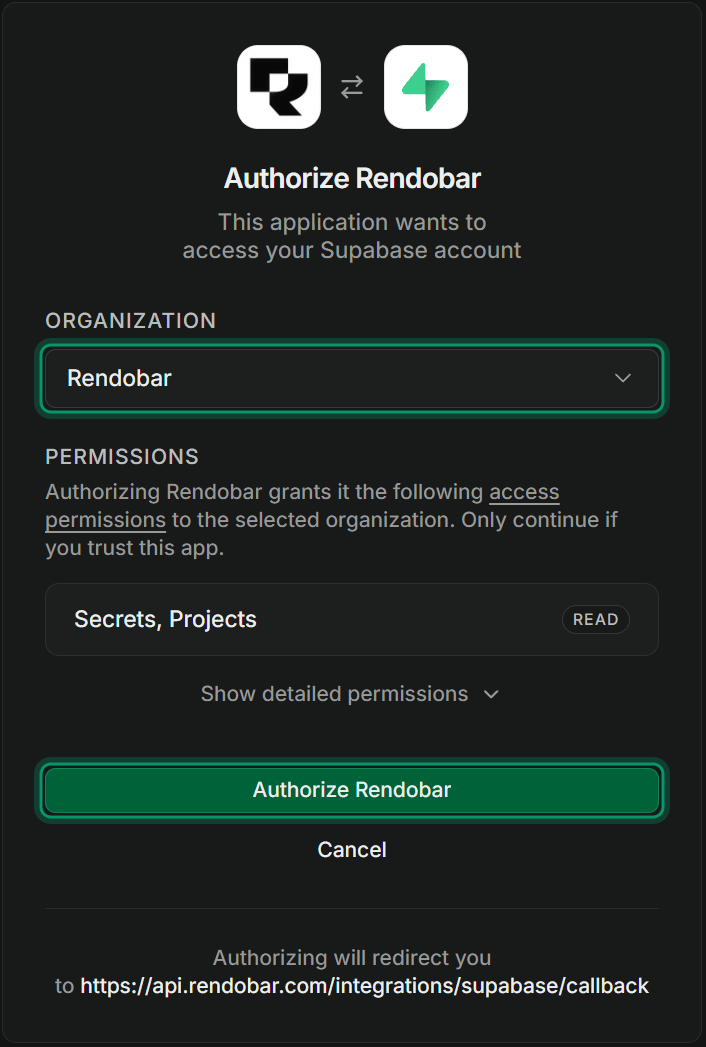 Rendobar uses the approval to list your projects and read one project's API keys, then discards it. Supabase returns you to Rendobar. Finish the next step within 10 minutes, or sign in again.
## 2. Pick the project and bucket
1. In **Project**, select the project.
2. In **Bucket**, select a bucket, or enter a new name. Rendobar creates a new bucket as private before it runs the access checks.
3. (Optional) Under **More options**, change the **ID**. Jobs use it to reference the bucket.
4. Select **Connect**.
Rendobar uses the approval to list your projects and read one project's API keys, then discards it. Supabase returns you to Rendobar. Finish the next step within 10 minutes, or sign in again.
## 2. Pick the project and bucket
1. In **Project**, select the project.
2. In **Bucket**, select a bucket, or enter a new name. Rendobar creates a new bucket as private before it runs the access checks.
3. (Optional) Under **More options**, change the **ID**. Jobs use it to reference the bucket.
4. Select **Connect**.
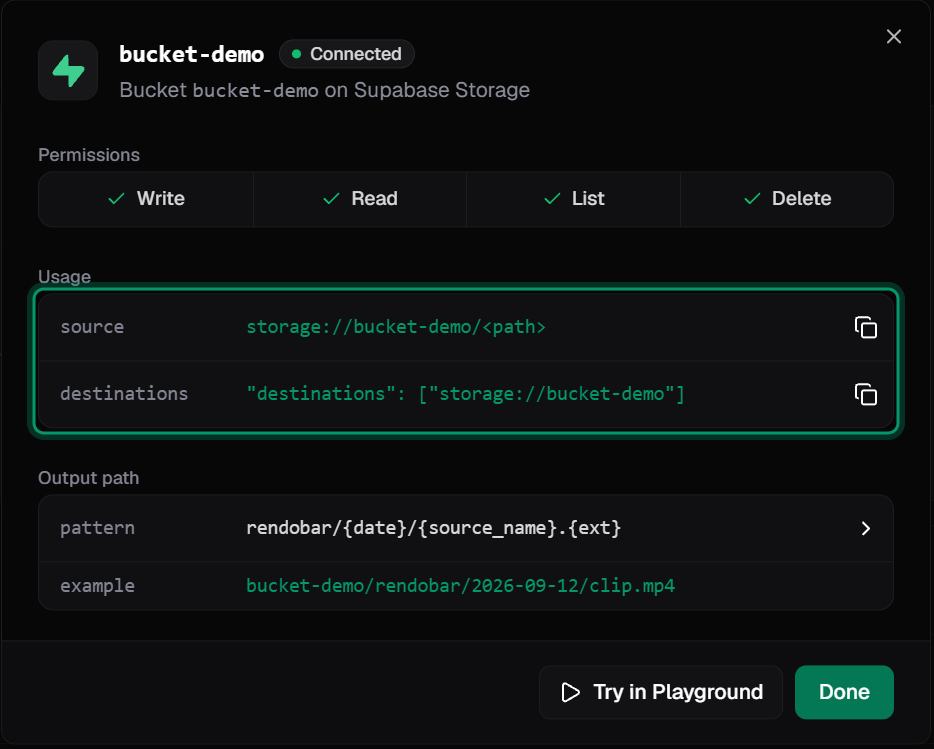
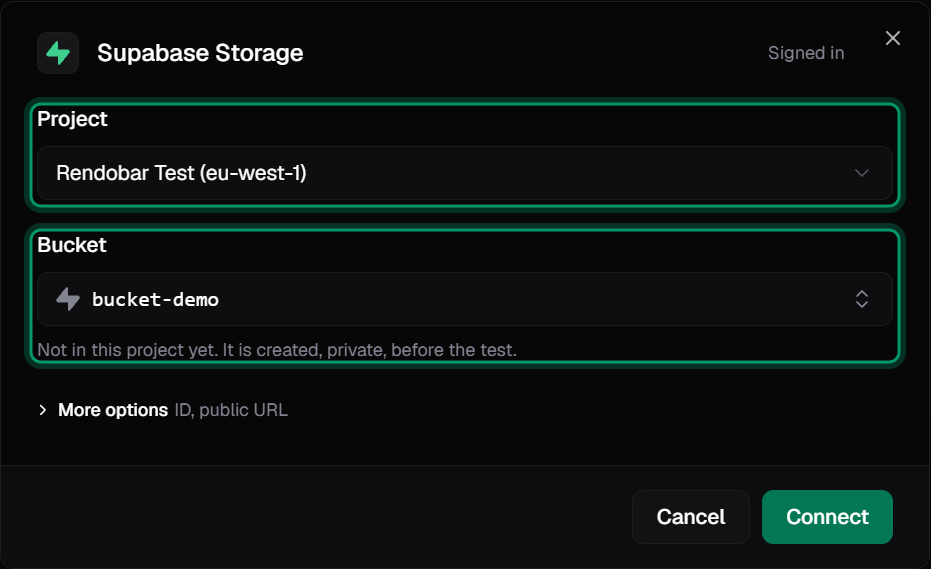 Rendobar runs its [access checks](/docs/storage#connect-a-bucket) and saves the connection only if they pass.
 ## 3. Use the bucket in a job
Put an object in `inputs` to read it, and the connection in `destinations` to write the output:
```typescript SDK theme={null}
import { createClient, outputUrl } from "@rendobar/sdk";
const client = createClient({
apiKey: process.env.RENDOBAR_API_KEY,
});
const job = await client.jobs.run({
type: "ffmpeg",
inputs: { source: "storage://bucket-demo/raw/clip.mp4" },
params: {
command: "ffmpeg -i source -vf scale=1280:-2 out.mp4",
},
destinations: ["storage://bucket-demo/exports"],
});
console.log(outputUrl(job));
console.log(job.deliveries);
```
```bash cURL theme={null}
curl https://api.rendobar.com/jobs \
-H "Authorization: Bearer $RENDOBAR_API_KEY" \
-H "Content-Type: application/json" \
-d '{
"type": "ffmpeg",
"inputs": { "source": "storage://bucket-demo/raw/clip.mp4" },
"params": {
"command": "ffmpeg -i source -vf scale=1280:-2 out.mp4"
},
"destinations": ["storage://bucket-demo/exports"]
}'
```
With the default output path, this writes `exports/clip.mp4`. Delivery finishes after the job, so `job.deliveries` can still show `pending` when `run` returns.
To change how outputs are named, see [delivery settings](/docs/storage#delivery-settings). If a delivery fails, see [delivery errors](/docs/storage#delivery-errors).
## What Rendobar stores
| Access | Stored, encrypted | Reaches |
| ----------- | -------------------------------------------- | --------------------------------------------------------------------------------------- |
| **Sign in** | The project's `anon` and `service_role` keys | Every bucket in the project, and the project's database through the `service_role` role |
| **S3 keys** | The access key ID and secret access key | Every bucket in the project, through Storage only |
Both credentials bypass Row Level Security, so your storage policies do not limit what Rendobar can read or write. The Supabase sign-in itself is not stored.
The `service_role` key has full access to the project's data, not only Storage. If that is more access than you want to give, connect with S3 keys.
## How do I revoke access?
**S3 keys.** In the Supabase dashboard, go to **Storage** > [**S3**](https://supabase.com/dashboard/project/_/storage/s3) and delete the access key. The connection stops working immediately.
**Sign in.** Removing Rendobar's authorization in Supabase does not stop the connection, because the connection uses the project's keys, not the sign-in. To stop it, deactivate the legacy API keys under **Project Settings** > **API Keys**. This also stops every other client that uses the legacy `anon` or `service_role` key.
Deleting the connection in Rendobar removes the stored keys, but does not invalidate them.
## Connect with S3 access keys
1. In the Supabase dashboard, go to **Storage** > [**S3**](https://supabase.com/dashboard/project/_/storage/s3).
2. Create an access key, and copy the access key ID and secret access key. Copy the **Endpoint** and **Region** from the same page.
3. In the Rendobar connect dialog, set **Access** to **S3 keys**, then enter the endpoint, region, bucket name, and the key pair.
4. Select **Connect**.
The endpoint has the form `https://.storage.supabase.co/storage/v1/s3`.
## Supabase-specific behavior
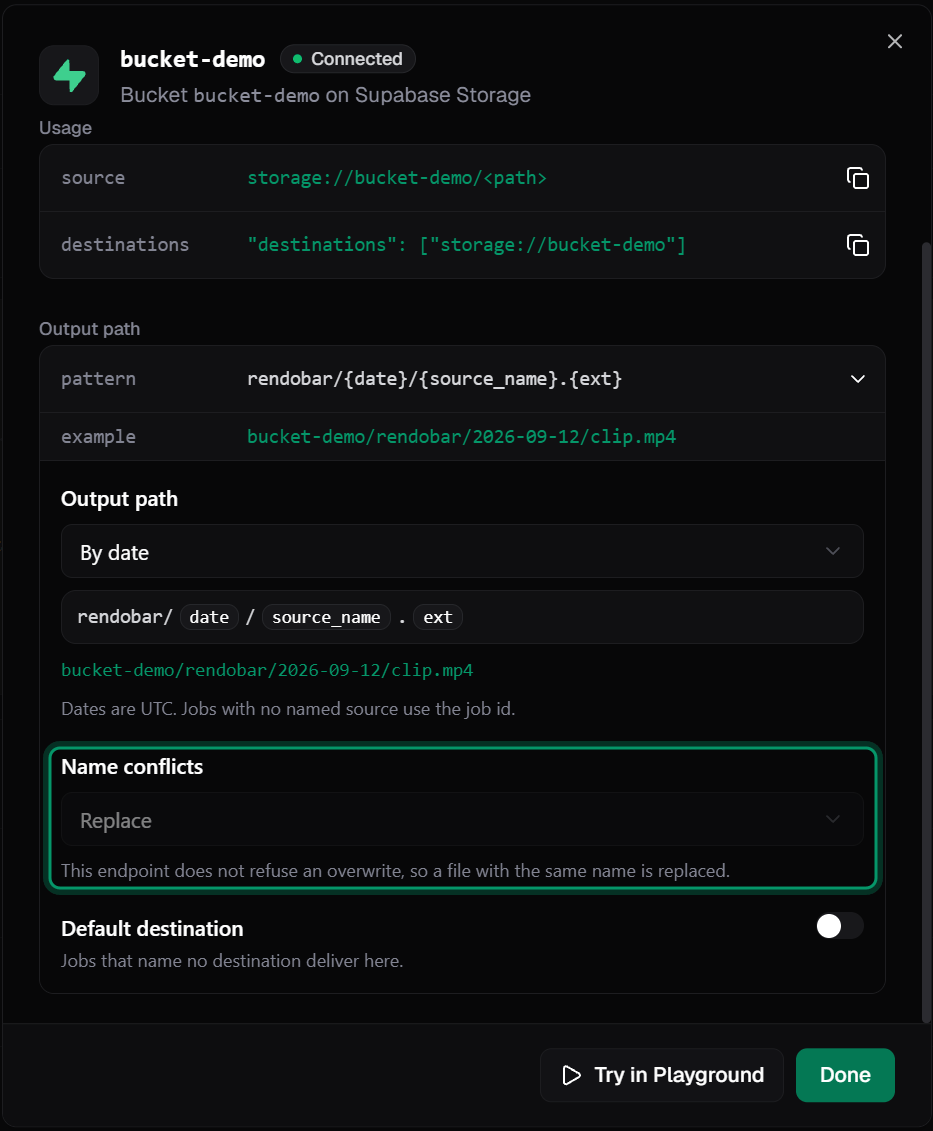
**Name conflicts.** Supabase Storage does not refuse an overwrite, so **Name conflicts** is always **Replace** on a Supabase connection. An output with the same path replaces the existing object. To keep every output, add `{job_id}` to the [output path](/docs/storage#output-path).
## 3. Use the bucket in a job
Put an object in `inputs` to read it, and the connection in `destinations` to write the output:
```typescript SDK theme={null}
import { createClient, outputUrl } from "@rendobar/sdk";
const client = createClient({
apiKey: process.env.RENDOBAR_API_KEY,
});
const job = await client.jobs.run({
type: "ffmpeg",
inputs: { source: "storage://bucket-demo/raw/clip.mp4" },
params: {
command: "ffmpeg -i source -vf scale=1280:-2 out.mp4",
},
destinations: ["storage://bucket-demo/exports"],
});
console.log(outputUrl(job));
console.log(job.deliveries);
```
```bash cURL theme={null}
curl https://api.rendobar.com/jobs \
-H "Authorization: Bearer $RENDOBAR_API_KEY" \
-H "Content-Type: application/json" \
-d '{
"type": "ffmpeg",
"inputs": { "source": "storage://bucket-demo/raw/clip.mp4" },
"params": {
"command": "ffmpeg -i source -vf scale=1280:-2 out.mp4"
},
"destinations": ["storage://bucket-demo/exports"]
}'
```
With the default output path, this writes `exports/clip.mp4`. Delivery finishes after the job, so `job.deliveries` can still show `pending` when `run` returns.
To change how outputs are named, see [delivery settings](/docs/storage#delivery-settings). If a delivery fails, see [delivery errors](/docs/storage#delivery-errors).
## What Rendobar stores
| Access | Stored, encrypted | Reaches |
| ----------- | -------------------------------------------- | --------------------------------------------------------------------------------------- |
| **Sign in** | The project's `anon` and `service_role` keys | Every bucket in the project, and the project's database through the `service_role` role |
| **S3 keys** | The access key ID and secret access key | Every bucket in the project, through Storage only |
Both credentials bypass Row Level Security, so your storage policies do not limit what Rendobar can read or write. The Supabase sign-in itself is not stored.
The `service_role` key has full access to the project's data, not only Storage. If that is more access than you want to give, connect with S3 keys.
## How do I revoke access?
**S3 keys.** In the Supabase dashboard, go to **Storage** > [**S3**](https://supabase.com/dashboard/project/_/storage/s3) and delete the access key. The connection stops working immediately.
**Sign in.** Removing Rendobar's authorization in Supabase does not stop the connection, because the connection uses the project's keys, not the sign-in. To stop it, deactivate the legacy API keys under **Project Settings** > **API Keys**. This also stops every other client that uses the legacy `anon` or `service_role` key.
Deleting the connection in Rendobar removes the stored keys, but does not invalidate them.
## Connect with S3 access keys
1. In the Supabase dashboard, go to **Storage** > [**S3**](https://supabase.com/dashboard/project/_/storage/s3).
2. Create an access key, and copy the access key ID and secret access key. Copy the **Endpoint** and **Region** from the same page.
3. In the Rendobar connect dialog, set **Access** to **S3 keys**, then enter the endpoint, region, bucket name, and the key pair.
4. Select **Connect**.
The endpoint has the form `https://.storage.supabase.co/storage/v1/s3`.
## Supabase-specific behavior
**Name conflicts.** Supabase Storage does not refuse an overwrite, so **Name conflicts** is always **Replace** on a Supabase connection. An output with the same path replaces the existing object. To keep every output, add `{job_id}` to the [output path](/docs/storage#output-path).
 **Public buckets.** When you pick a public bucket after signing in, Rendobar sets the connection's [public URL](/docs/storage#public-url) to `https://.supabase.co/storage/v1/object/public/`, so deliveries return links on Supabase.
## Next steps
Connection ids, delivery settings, credentials, and error codes.
Where `inputs` and `destinations` appear in the job payload.
Submit the job above in TypeScript.
Receive an event when a job completes.
**Public buckets.** When you pick a public bucket after signing in, Rendobar sets the connection's [public URL](/docs/storage#public-url) to `https://.supabase.co/storage/v1/object/public/`, so deliveries return links on Supabase.
## Next steps
Connection ids, delivery settings, credentials, and error codes.
Where `inputs` and `destinations` appear in the job payload.
Submit the job above in TypeScript.
Receive an event when a job completes.