


Change video frame rate with FFmpeg

Use -vf fps=30. FFmpeg repeats or drops frames to hit the new rate and the video keeps its length and speed. If you want every original frame played at the new rate instead, retime with setpts, and the video gets shorter or longer.

Same length Re-encode

Normal playback at a new rate, for a platform or an edit timeline.

ffmpeg -i in.mp4 -vf fps=30 -c:a copy out.mp4

300 frames over 10.0 s, at 30 fps. Every fifth frame is a repeat of the one before, and the sound is untouched.

Frames
240 in, 300 out
Length
10.0 s, unchanged
Run time
1.0 s
Output
2.2 MB
Same frames Re-encode

Every frame must survive, as in a timelapse or a high-speed clip.

ffmpeg -i in.mp4 -vf setpts=0.8*PTS -r 30 -af atempo=1.25 out.mp4

All 240 frames, none added or dropped, now 8.0 s long. atempo=1.25 speeds the sound up by the same amount so it stays in sync.

Frames
240 in, 240 out
Length
10.0 s to 8.0 s
Run time
934 ms
Output
1.8 MB

Proof

Which frames come out

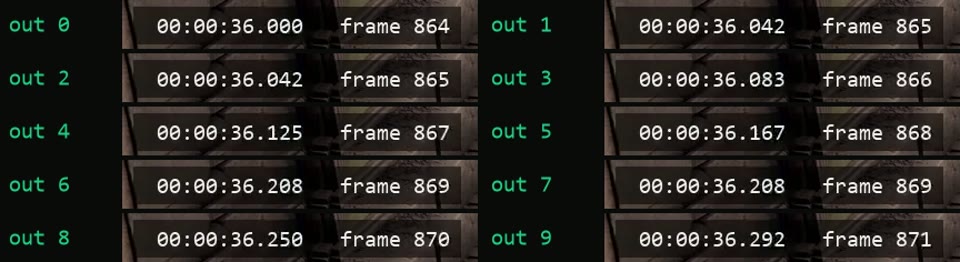
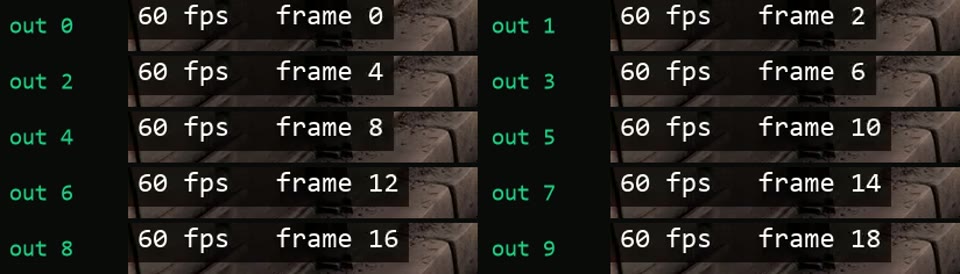
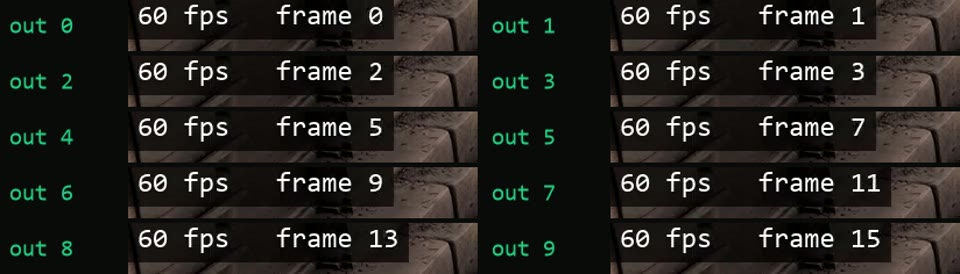
The strips show the first ten output frames with the frame number burned into each. The pictures below them zoom 3x into frame 301 of three ways to reach 60 fps, all from the same 24 fps clip, where the girl runs.
in.mp4, fps=30 Every fifth frame repeats
First ten frames of the 30 fps output: source frames 864, 865, 865, 866, 867, 868, 869, 869, 870, 871
300 frames Frames 865 and 869 appear twice. 4 frames in, 5 out. That repeat is the slight stutter of 24 fps shown at 30.
in60.mp4, fps=30 Every other frame, evenly
First ten frames of the 60 to 30 fps output: 0, 2, 4, 6, 8, 10, 12, 14, 16, 18
300 frames Frames 0, 2, 4 and on to 598. Exactly half, evenly spaced.
in60.mp4, -r 30 Uneven start, 2 extra frames
First ten frames of the 60 to 30 fps output made with -r 30: 0, 1, 2, 3, 5, 7, 9, 11, 13, 15
302 frames Frames 0 to 3 back to back, then odd frames to 599. The opening plays at half speed for a moment, and the file runs 10.07 s.
fps=60 A copy of a real frame
3x zoom on the running girl in frame 301 of the fps=60 output, sharp
600 frames Sharp, a copy of source frame 984. Each source frame is shown two or three times, so motion looks the same as at 24 fps.
minterpolate=fps=60 A frame that never existed
3x zoom on the running girl in frame 301 of the minterpolate output, her arm and legs smeared
596 frames Built from frames 984 and 985 by estimating motion. Her arm and legs smear where the movement was too fast to track. The burned-in timecode showed both frames' digits on top of each other.
minterpolate=fps=60:mi_mode=blend A cross-fade of two frames
3x zoom on the running girl in frame 301 of the blended output, double outlines on her arm and legs
596 frames Frames 984 and 985 mixed together. Her arm, shoulder and legs show double outlines instead of a new position.

Footage: Sintel, © Blender Foundation, CC BY 3.0. Timecode, frame numbers and the 60 fps version made by us.

Run it

Run it on Rendobar

Send the same command from your code. The job fetches each input from its URL and returns the output file's URL when it finishes.

job.ts
import { createClient } from "@rendobar/sdk";
const rb = createClient({ apiKey: process.env.RENDOBAR_API_KEY });
const job = await rb.jobs.run({
type: "ffmpeg",
inputs: {
"in.mp4": "https://cdn.rendobar.com/examples/change-frame-rate/in.mp4",
},
params: {
command: "ffmpeg -i in.mp4 -vf fps=30 -c:a copy out.mp4",
},
});
console.log(job.output.file.url);

Install with npm i @rendobar/sdk. jobs.run() submits and waits, so it returns the finished job in one call.

terminal
curl https://api.rendobar.com/jobs \
-H "Authorization: Bearer $RENDOBAR_API_KEY" \
-H "Content-Type: application/json" \
-d '{
"type": "ffmpeg",
"inputs": {
"in.mp4": "https://cdn.rendobar.com/examples/change-frame-rate/in.mp4"
},
"params": {
"command": "ffmpeg -i in.mp4 -vf fps=30 -c:a copy out.mp4"
}
}'

Returns immediately with a job id. Poll GET /jobs/{id} or register a webhook rather than blocking on the request.

Every variant

Pick the command for your case

Each one ran on the same input. The line under it is what came out. Run times are the best of three runs with FFmpeg 8.0 on one desktop machine, so read them as relative.

  1. Change 60 fps to 30 fps

    Re-encode
    ffmpeg -i in60.mp4 -vf fps=30 -c:a copy out.mp4

    300 frames over 10.0 s. Every even frame kept, every odd frame dropped.

    1.1 s run 2.1 MB 10.00 s long

  2. Change 24 fps to 60 fps by repeating frames

    Re-encode
    ffmpeg -i in.mp4 -vf fps=60 -c:a copy out.mp4

    600 frames over 10.0 s. Each source frame shown two or three times in turn. Motion looks as it did at 24 fps.

    1.4 s run 2.3 MB 10.00 s long

  3. Make 24 fps smooth at 60 fps

    Re-encode
    ffmpeg -i in.mp4 -vf minterpolate=fps=60 -c:a copy out.mp4

    596 frames, video 9.93 s. Most frames are new, built from motion between source frames. The last four frames were missing, and it was by far the slowest command on this page.

    47.4 s run 2.5 MB 10.00 s long

  4. Blend frames to 60 fps

    Re-encode
    ffmpeg -i in.mp4 -vf minterpolate=fps=60:mi_mode=blend -c:a copy out.mp4

    596 frames, video 9.93 s. In-between frames are cross-fades, not motion estimates.

    1.7 s run 2.5 MB 10.00 s long

  5. Change frame rate without re-encoding

    Stream copy
    ffmpeg -itsscale 0.8 -i in.mp4 -an -c copy out.mp4

    All 240 frames at 30 fps, 8.0 s, video copied untouched. A retime only. It plays faster, and the audio is dropped because it would no longer match.

    86 ms run 3.0 MB 8.01 s long

Gotchas

Where it goes wrong

Does changing the frame rate change the speed?

Not with the fps filter. It keeps every timestamp and adds or removes frames to fill the new rate, so 10 s stays 10 s.

setpts, -itsscale and -r before -i do the opposite. They keep every frame and change when each one plays. The last one catches people out, because it changes the video and leaves the audio alone:

ffmpeg -r 30 -i in.mp4 -c:a copy out.mp4

240 frames, video 8.0 s, audio still 10.0 s. Picture and sound drift apart from the first frame.

If you retime on purpose, retime the audio with it, as the second answer above does with atempo.

-r or the fps filter?

The fps filter. For 24 to 30 they made identical frames. For 60 to 30 they did not:

ffmpeg -i in60.mp4 -r 30 -c:a copy out.mp4

302 frames and 10.07 s of video, against 300 frames and 10.0 s from -vf fps=30. -r kept frames 0, 1, 2 and 3 in a row, then every odd frame, so the start runs slow for a moment.

Here fps=30 kept frames 0, 2, 4 and on, evenly. -r as an output option still sets the rate the file is written at, but let the filter choose the frames.

Can I change the frame rate without re-encoding?

Only by retiming. Copying the stream means copying every frame, so the count cannot change, and 240 frames at 30 fps last 8 s instead of 10. -itsscale 0.8 before -i did that in a fraction of the encode time, with the video untouched.

To keep the length and change the rate, the encoder has to make or drop frames. There is no copy mode for that.

Is minterpolate worth the time?

Compare the run times of the three 60 fps tasks above. Motion interpolation was the slowest command on this page by a wide margin, on a 10 s clip at 1280x546.

What you get is new in-between frames, and new kinds of error. Fast movement smeared (see the zoom above), the burned-in timecode got two sets of digits, and both minterpolate modes came out 4 frames short of fps=60. Use it for a short clip that has to look smooth, check the output frame by frame, and use fps=60 for everything else.

Related: Change video speed, Extract frames, Trim a video, Remove duplicate frames.

Your command. Our infrastructure.

Bring your own commands. Run them on scalable CPU and GPU infrastructure, and pay only for compute time.