

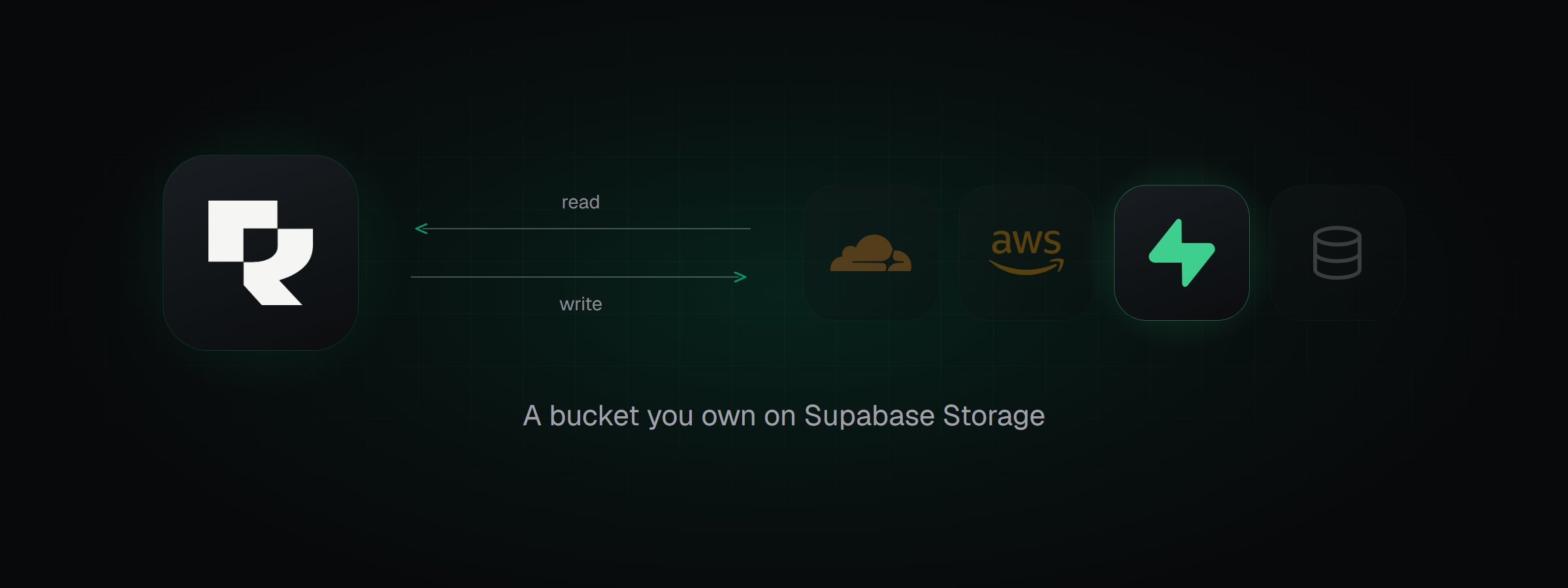
Rendobar reading inputs from a Supabase Storage bucket and writing outputs back.
Prerequisites
You need a Supabase project. Supabase offers two ways to connect. Choose one with Access in the connect dialog:
Both reach every bucket in the project, not only the one you connect. See what Rendobar stores.
Sign in needs the project’s legacy
anon and service_role API keys to be active, because Supabase Storage’s S3 endpoint accepts only those keys. If they are turned off, turn them on under Project Settings > API Keys, or use S3 keys.
This page uses Sign in. To use S3 keys instead, see Connect with S3 access keys.
1. Sign in with Supabase
- In Storage, select Connect Storage, then Supabase Storage.
- Under Access, select Sign in, then select Sign in with Supabase.
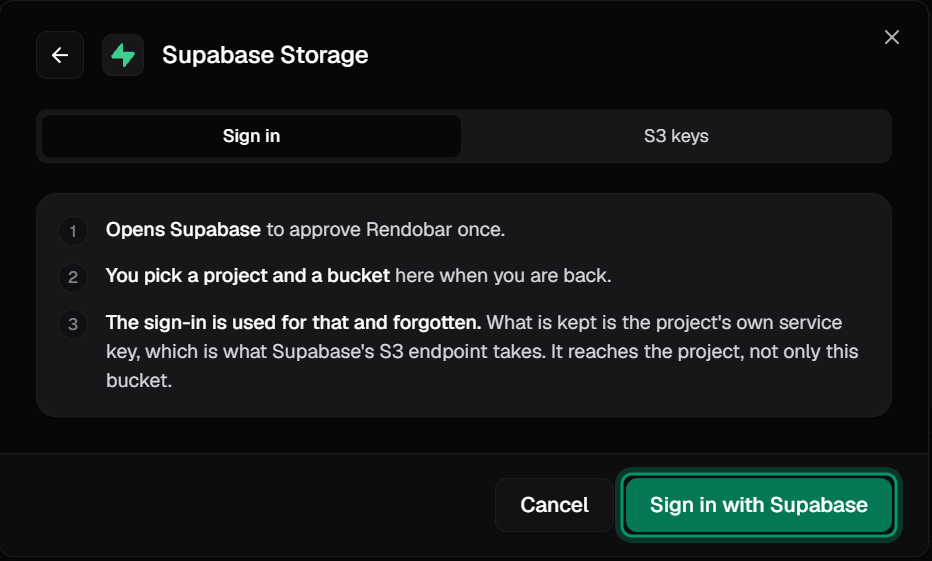
The Supabase connect dialog on the Sign in tab.
- On the Supabase authorization page, choose the Organization that owns the project, then select Authorize Rendobar.
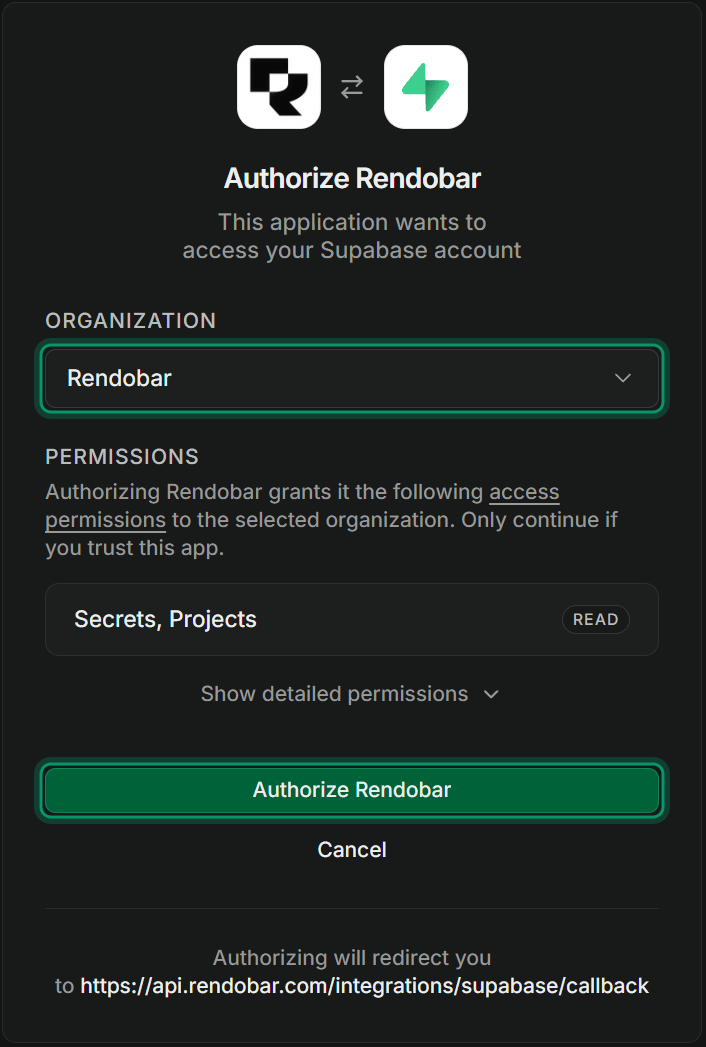
Supabase asks you to approve read access to the organization's projects and secrets.
2. Pick the project and bucket
- In Project, select the project.
- In Bucket, select a bucket, or enter a new name. Rendobar creates a new bucket as private before it runs the access checks.
- (Optional) Under More options, change the ID. Jobs use it to reference the bucket.
- Select Connect.
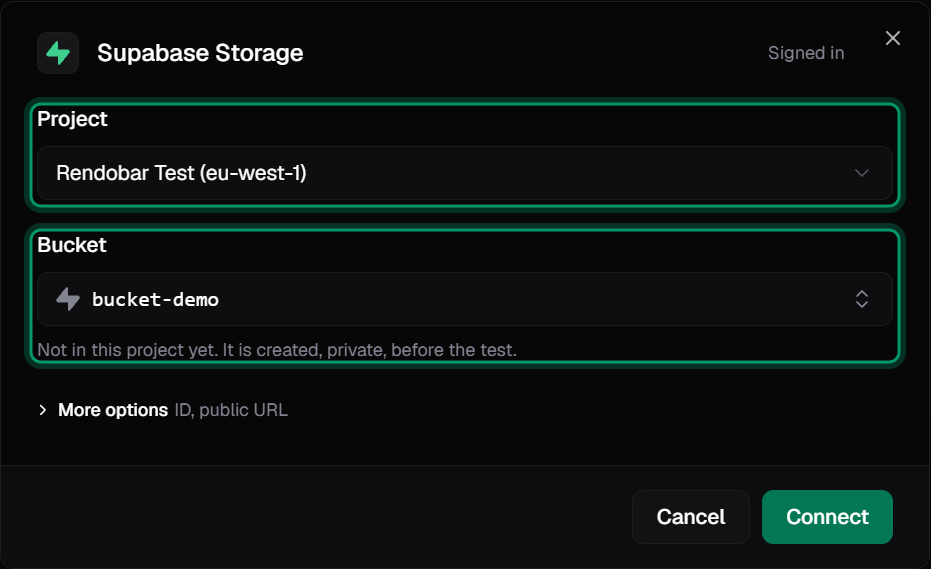
The project and bucket, picked after signing in.
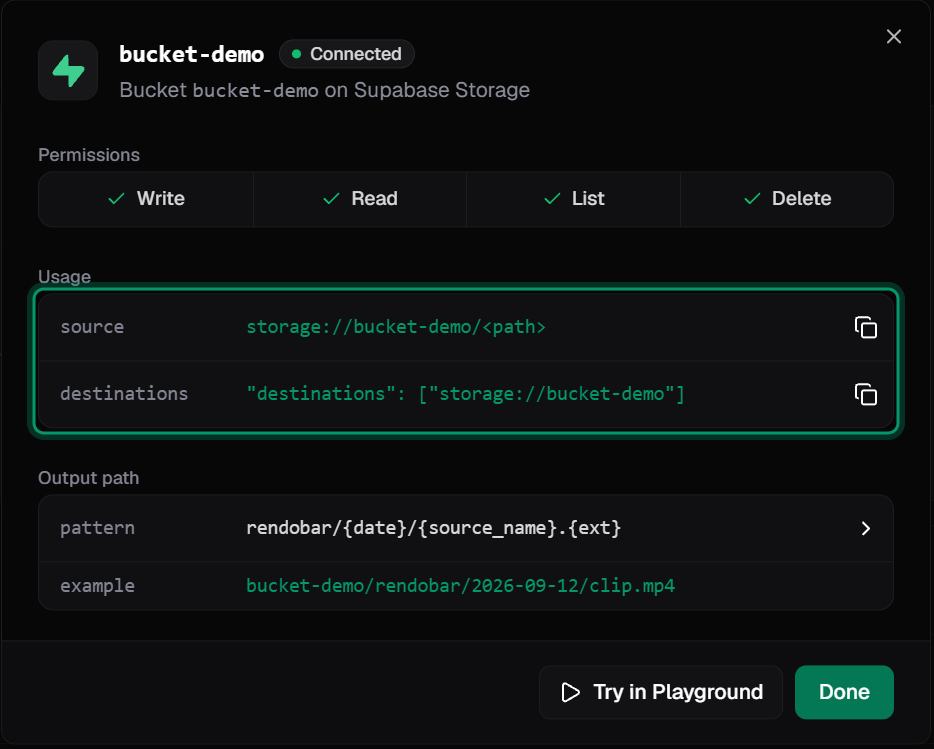
A connected bucket, with the access checks passed and the storage URIs to use in jobs.
3. Use the bucket in a job
Put an object ininputs to read it, and the connection in destinations to write the output:
exports/clip.mp4. Delivery finishes after the job, so job.deliveries can still show pending when run returns.
To change how outputs are named, see delivery settings. If a delivery fails, see delivery errors.
What Rendobar stores
Both credentials bypass Row Level Security, so your storage policies do not limit what Rendobar can read or write. The Supabase sign-in itself is not stored.
How do I revoke access?
S3 keys. In the Supabase dashboard, go to Storage > S3 and delete the access key. The connection stops working immediately. Sign in. Removing Rendobar’s authorization in Supabase does not stop the connection, because the connection uses the project’s keys, not the sign-in. To stop it, deactivate the legacy API keys under Project Settings > API Keys. This also stops every other client that uses the legacyanon or service_role key.
Deleting the connection in Rendobar removes the stored keys, but does not invalidate them.
Connect with S3 access keys
- In the Supabase dashboard, go to Storage > S3.
- Create an access key, and copy the access key ID and secret access key. Copy the Endpoint and Region from the same page.
- In the Rendobar connect dialog, set Access to S3 keys, then enter the endpoint, region, bucket name, and the key pair.
- Select Connect.
https://<project-ref>.storage.supabase.co/storage/v1/s3.
Supabase-specific behavior
Name conflicts. Supabase Storage does not refuse an overwrite, so Name conflicts is always Replace on a Supabase connection. An output with the same path replaces the existing object. To keep every output, add{job_id} to the output path.
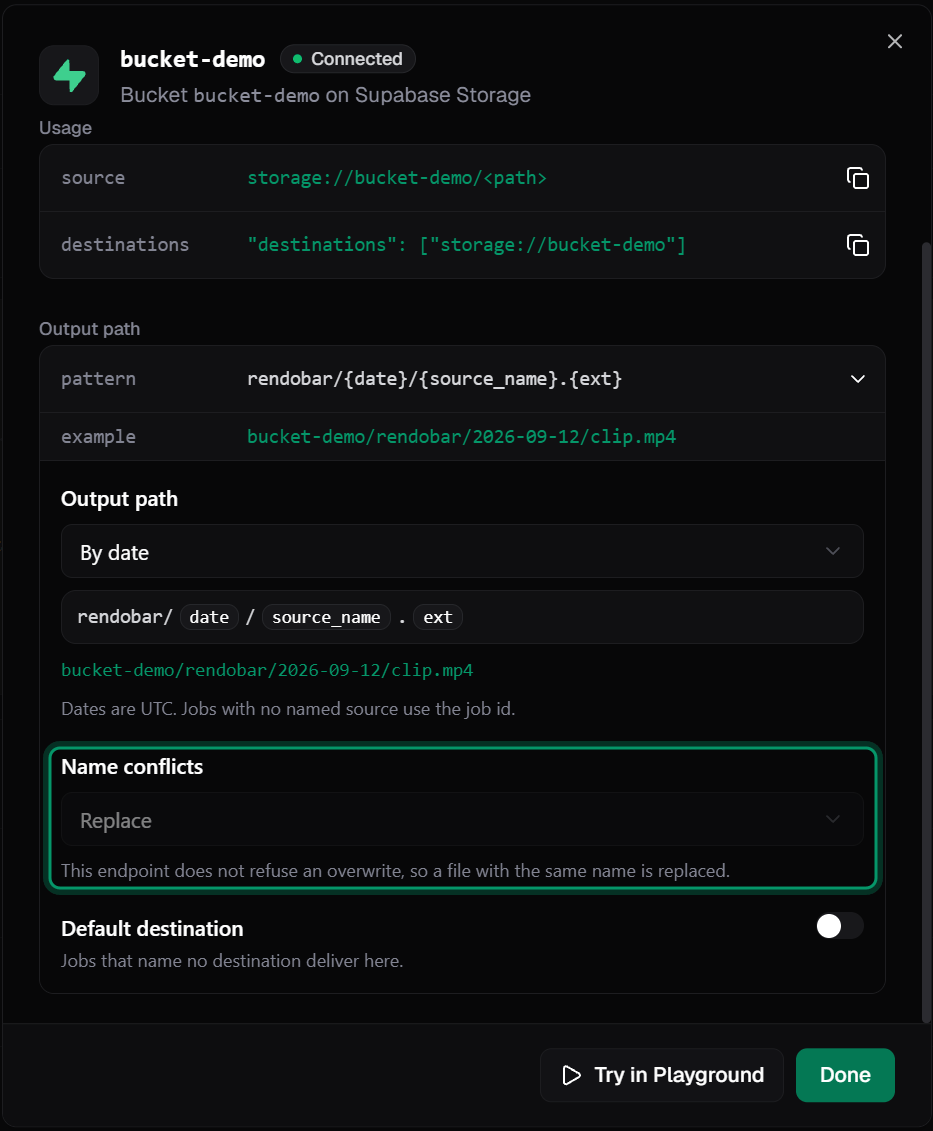
Name conflicts is fixed to Replace on a Supabase connection.
https://<project-ref>.supabase.co/storage/v1/object/public/<bucket>, so deliveries return links on Supabase.
Next steps
Storage connections
Connection ids, delivery settings, credentials, and error codes.
Jobs
Where
inputs and destinations appear in the job payload.SDK
Submit the job above in TypeScript.
Webhooks
Receive an event when a job completes.